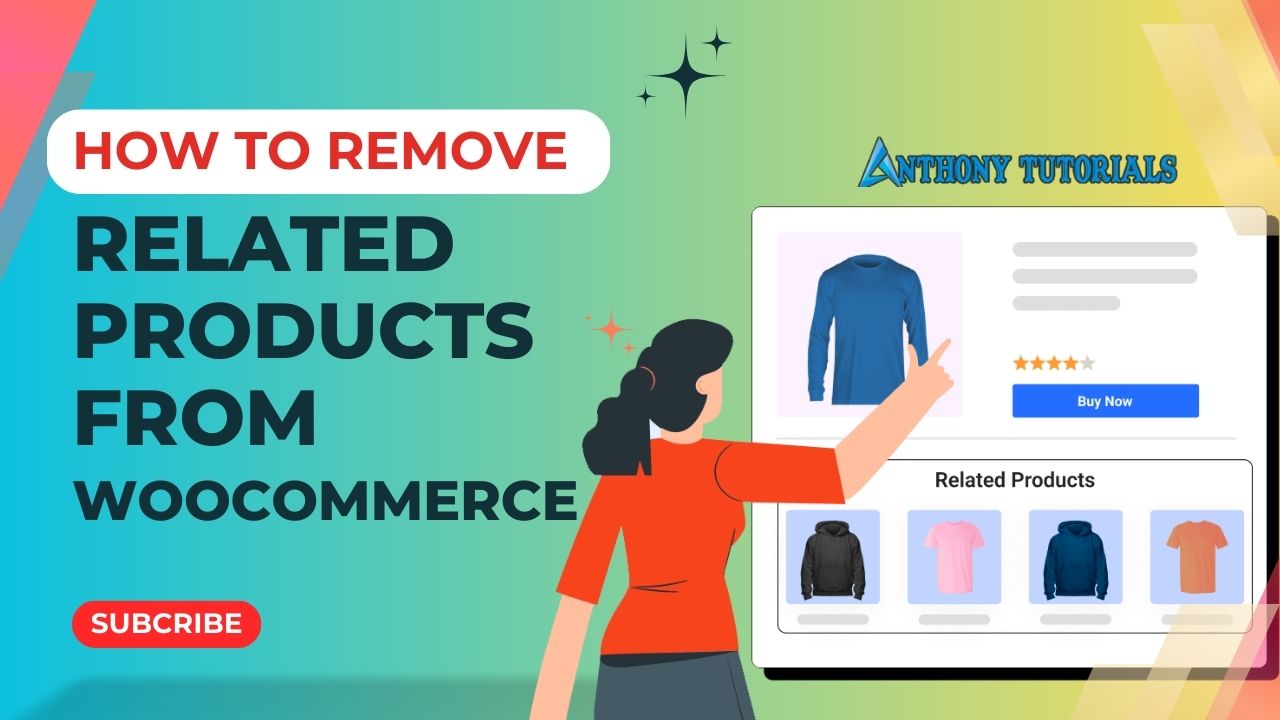
Hey everyone! Welcome back to Anthony Tutorials. In today’s video, I’m going to show you how to remove the related products section from WooCommerce. This will help you create a more focused shopping experience on your site.
WooCommerce doesn’t make it easy to disable related products, but don’t worry! I’ll walk you through four different methods to get this done. Some are super simple, while others might require a little bit of coding. Let’s start with the easiest option first.
Method 1: Using your theme customization options
This is the easiest way, but it depends on your WordPress theme. Many WooCommerce themes have an option to disable related products.
Here’s how to check if your theme allows this:
- Log in to your WordPress dashboard.
- Go to Appearance > Customize.
- Look for a section related to WooCommerce or Single Product Page.
- If you see an option to disable related products, simply turn it off and save your changes.
If your theme doesn’t have this option, don’t worry—we have other methods to try!
Method 2: Hiding Related Products with CSS
If your theme doesn’t provide an option, you can use CSS to hide the related products section.
Here’s how:
- Go to your WordPress dashboard.
- Navigate to Appearance > Customize.
- Click on Additional CSS.
- Copy and paste this code snippet:
.related.products {visibility:hidden;}- Click Publish to save your changes.
This will hide the related products from being displayed, but they will still exist in the site’s code. If you want a more permanent solution, let’s look at using PHP.
Method 3: Removing Related Products with PHP Code snippet
If you’re comfortable with adding a small piece of code, you can remove related products entirely using PHP code snippet.
Here’s how to do it:
To install it, just go to your WordPress dashboard, head over to Plugins > Add New, and search for ‘Code Snippets.’ Once you find it, click Install Now and then Activate.
Now, to add the code, go to Snippets > Add New, give it a title, and paste the code in the Code section. This code has link in description below. After that, click Save Changes and Activate.
/**
* Remove related products output
*/

remove_action( 'woocommerce_after_single_product_summary', 'woocommerce_output_related_products', 20 );
And that’s it! This method will completely remove the related products section from your WooCommerce store.
Related: How To Change Custom Add to Cart Text in WooCommerce (Without a Plugin)
Method 4: Using a Plugin to remove the related products
If you don’t want to deal with code, you can use a free plugin called NS Remove Related Products.
- Log in to your WordPress dashboard.
- Go to Plugins > Add New.
- Search for NS Remove Related Products.
- Click Install Now, then Activate.
- Go to the plugin’s settings and check the Enable Plugin option.
- Click Save Changes.
Conclusion
So, there you have it—four different ways to remove related products from WooCommerce! If your theme has the option, that’s the easiest way. If not, you can use CSS, PHP, or a plugin to get the job done.
I hope this helps you choose the perfect color scheme for your website. Thank you for reading! I hope this article was helpful. If you have any questions or suggestions, feel free to share them in the comments.